How to Implement a Multi-Store Setup in Magento 2

Understanding Multi-Store in Magento 2
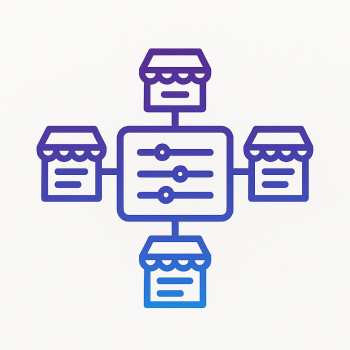
Magento 2’s multi-store feature lets you manage multiple online stores from a single admin panel. Whether you’re selling in different regions, targeting different audiences, or running separate brands, this setup saves time and resources. Instead of maintaining multiple installations, you handle everything under one roof.
Here’s a quick breakdown of key terms:
- Website – Top-level structure (e.g., a brand or region).
- Store – A subsection (e.g., different product lines under the same brand).
- Store View – The frontend presentation (e.g., language or currency variations).
Step 1: Plan Your Store Structure
Before diving into configurations, map out your stores. For example:
- Website: US Store (domain: us.magefine.com)
- Store: Electronics, Apparel
- Store View: English, Spanish
Step 2: Configure Websites, Stores, and Views
Navigate to Stores > Settings > All Stores in your Magento 2 admin panel.
Create a New Website
- Click Create Website.
- Fill in details (Name: "US Store", Code: "us_store").
- Save.
Add a Store Under the Website
- Click Create Store.
- Select the "US Store" website.
- Name it "Electronics" and assign a root category (create one if needed).
Set Up Store Views
- Click Create Store View.
- Assign it to the "Electronics" store.
- Name it "English" and set the code to "en_us".
Step 3: Configure Domain and Base URLs
Edit app/etc/env.php to map domains:
'websites' => [
  'us_store' => [
    'base_url' => 'https://us.magefine.com/',
    'base_link_url' => 'https://us.magefine.com/'
  ]
]
Then, update your server (Nginx/Apache) to route requests to the correct store. For Nginx:
server {
  server_name us.magefine.com;
  set $MAGE_RUN_CODE "us_store";
  set $MAGE_RUN_TYPE "website";
  root /var/www/magento2;
  # ... rest of your config
}
Step 4: Customize Store-Specific Settings
Each store can have unique:
- Currencies/Payment Methods: Set under Stores > Currency.
- Themes: Assign via Content > Design > Configuration.
- Products/Pricing: Use Catalog > Products and scope dropdown (top-left) to assign per store.
Step 5: Test and Optimize
After setup:
- Clear caches (
bin/magento cache:flush). - Test each store’s frontend and checkout.
- Monitor performance (consider Magefine’s optimization extensions for multi-store speed boosts).
Pro Tips
- Shared Cart? Use extensions like Magefine’s Multi-Store Cart Sync.
- SEO: Set unique meta titles/URLs per store view.
- Hosting: Ensure your Magento hosting plan handles multi-store traffic.
That’s it! With Magento 2’s flexibility, scaling to multiple stores is smoother than ever. Need help? Check out Magefine’s tools to streamline the process.